PRACTICAL EXCEL WORKFLOW
How to preserve manual notes when refreshing Excel data
Keep notes attached to a stable record key instead of a row position when daily exports add, remove or reorder rows.
Typing notes beside a refreshed table is unsafe when rows can move. A note belongs to a job identity, not to row 37. The reliable design is a separate note table keyed by a stable ID, joined back to the current export.
Safe method
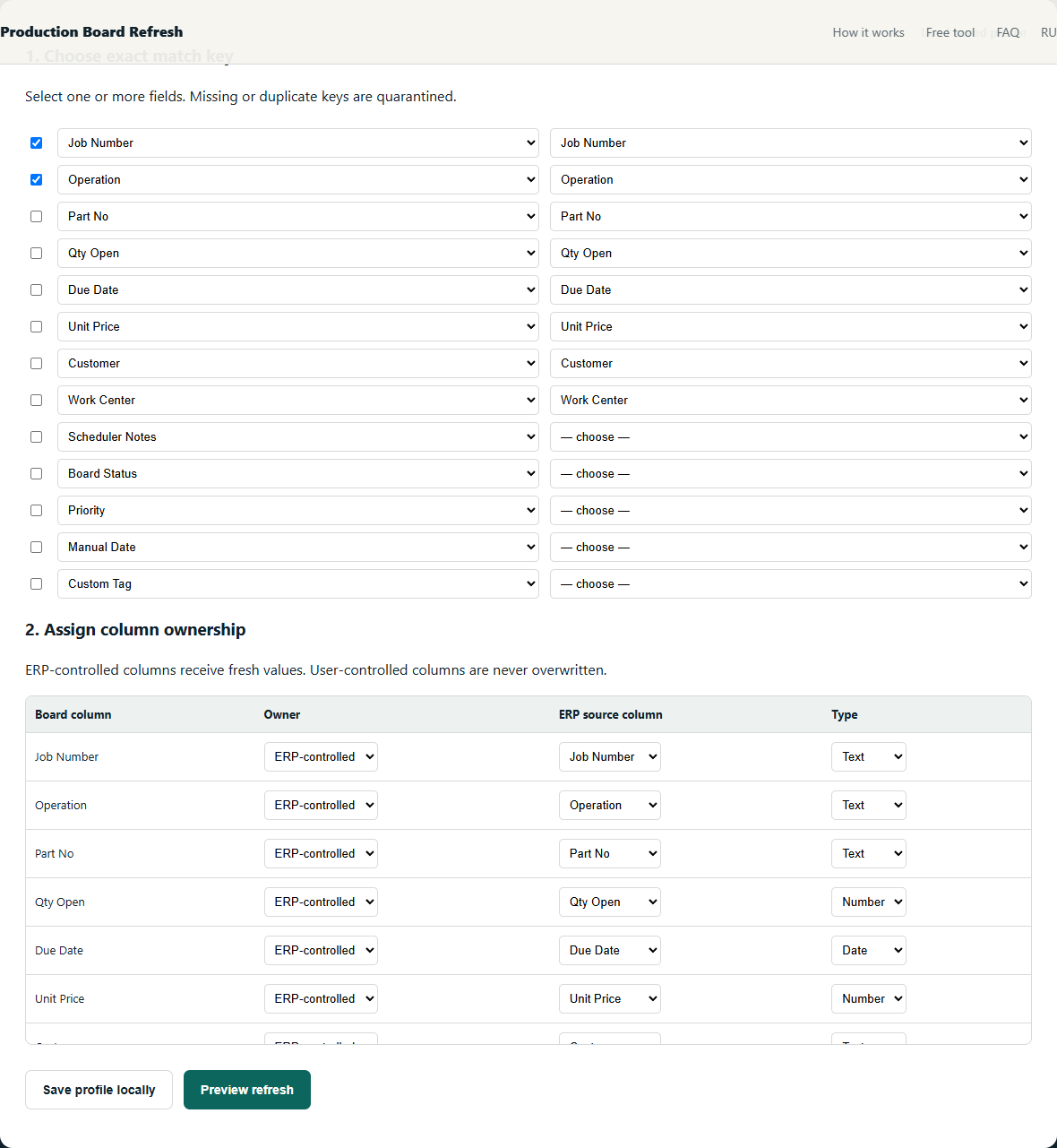
- Create a Notes table containing the key and only human-maintained fields.
- Import the new export as a separate table.
- Verify both key columns use the same data type and are unique.
- Use an exact left join to attach notes to current rows.
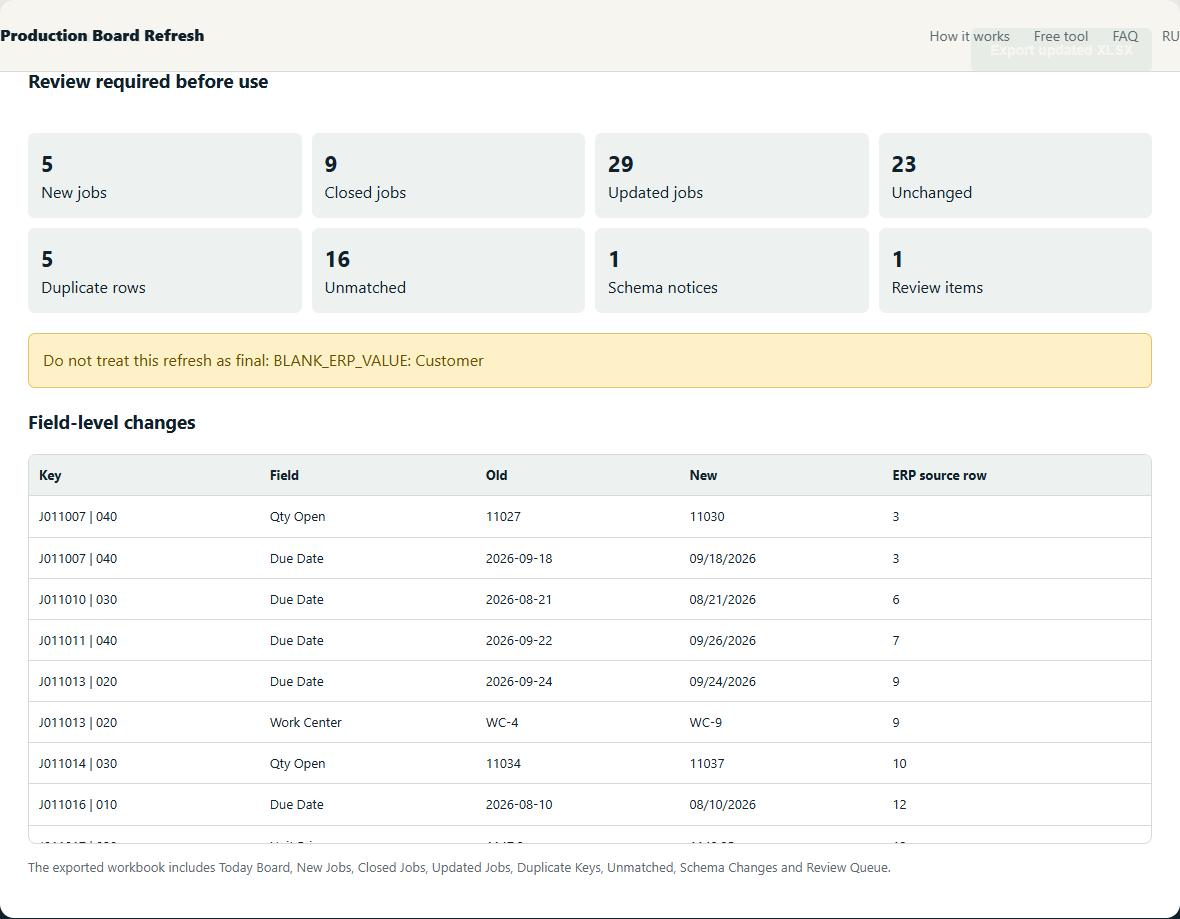
- Use anti-joins to list newly opened and closed records; never fuzzy-match operational IDs.
Worked example
Yesterday J-008 was row 12 with note ‘awaiting material’. Today it moves to row 4 after six jobs close. Joining on J-008 preserves the note; copying row 12 does not.
Checks that prevent plausible-looking mistakes
- Do not type persistent notes directly into a query output table.
- Do not merge text ID 0012 with numeric ID 12 unless that conversion is explicitly correct.
- Do not expand a one-to-many join before resolving duplicate keys.
The objective is not to maximize automatic matches. It is to make every accepted match deterministic and route uncertainty to a short manual review.
What the review should show
Free alternatives
Power Query can implement this method with exact joins and anti-joins. It is the best free option when someone in the shop can build and maintain the query. The local beta packages the same safety decisions into one narrow workflow; it does not claim to support every ERP or custom workbook.
Further reading: source 1 · source 2
Related production-board guides
- Refresh ERP-owned fields without replacing the working board
- Separate matched, new and closed jobs before export
Your production files stay on your device. The tool processes spreadsheets locally in your browser. We collect only anonymous usage events to evaluate the beta.